Proxmox - Add new disk

In the proxmox UI select the following steps:
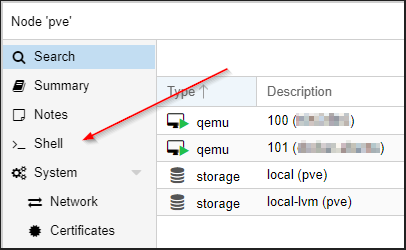
Check for the Disk to add:
lsblk -o +MODEL,SERIAL,WWNExample results:
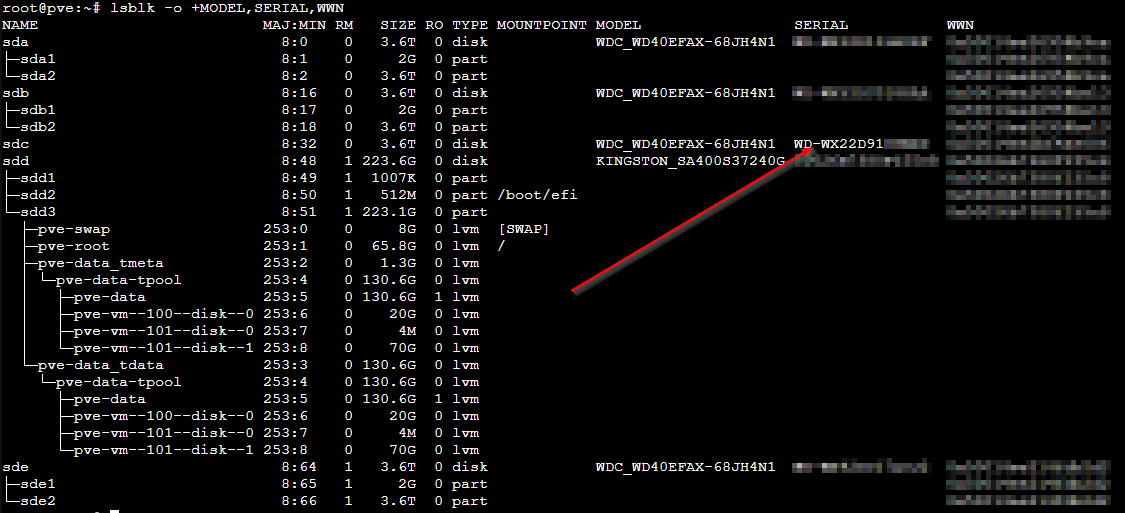
With this we can identify the ID of the disk since it won't have any partition assigned then we can run:
sudo lsblk |awk 'NR==1{print $0" DEVICE-ID(S)"}NR>1{dev=$1;printf $0" ";system("find /dev/disk/by-id -lname \"*"dev"\" -printf \" %p\"");print "";}'|grep -v -E 'part|lvm'This means we can finally run the command to add the disk:
💡
NOTE:
100 -> MachineId in Proxmox
-sata4 -> The disk name that will be assigned on hardware page
100 -> MachineId in Proxmox
-sata4 -> The disk name that will be assigned on hardware page
qm set 100 -sata4 /dev/disk/by-id/ata-WDC_WD40EFAX-68JH4N1_WD-WXXXXXXXXXXXXXReboot the machine and we can now use the new disk inside the machine
💡
Change the Disk type from SCSI to VirtIO Block:
- Detach the disk in the proxmox UI
- The disk will be shown as unused disk
- Double click the disk to attach and chose VirtIO Block instead of SCSI
- Detach the disk in the proxmox UI
- The disk will be shown as unused disk
- Double click the disk to attach and chose VirtIO Block instead of SCSI